FOR ASSISTANCE SUBMIT A REQUEST VIA OUR SERVICE CATALOG
Manager's Guide to Advanced Reporting
Data in Advanced Reporting is strictly updated once a day in an overnight process.
The save function has been intentionally disabled. There are additional tools available in the upper toolbar such as a search field and page navigation.
| Step | Action | Example |
|---|---|---|
1 | Go to: Self > Reporting > Advanced Reporting | 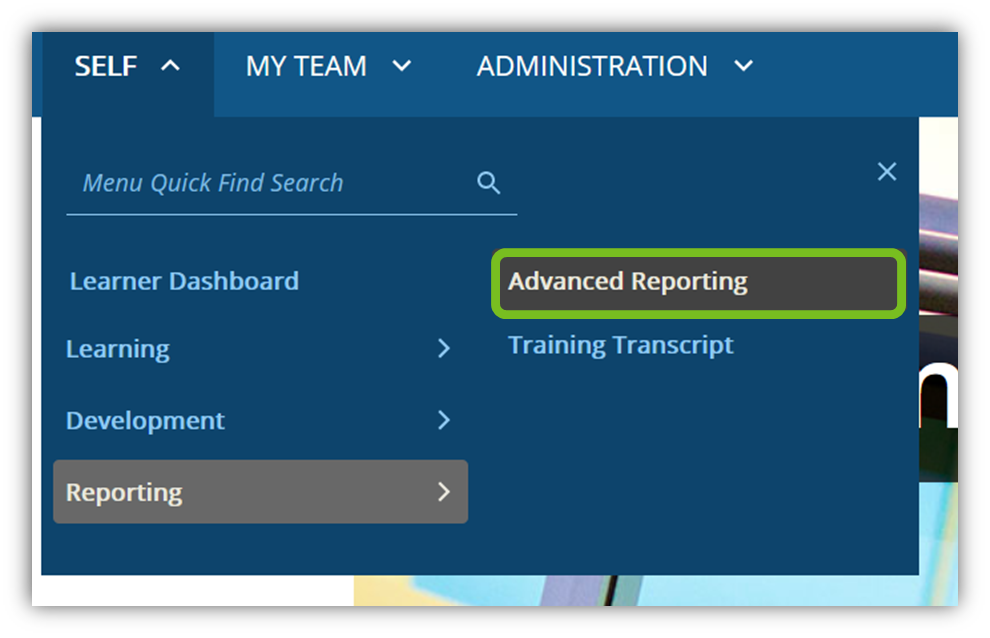
|
2 | In the folder structure on the left, navigate to: Custom > Reports > UC Locations > UCR | 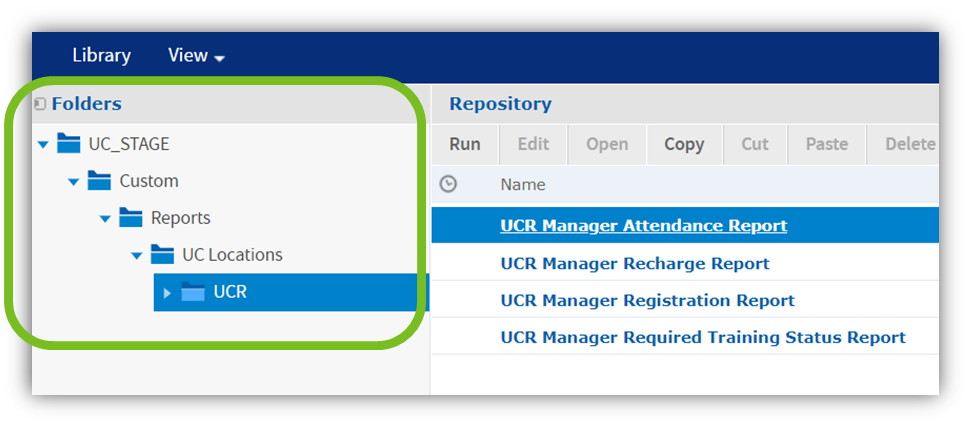
|
3 | Select a report name to open it | 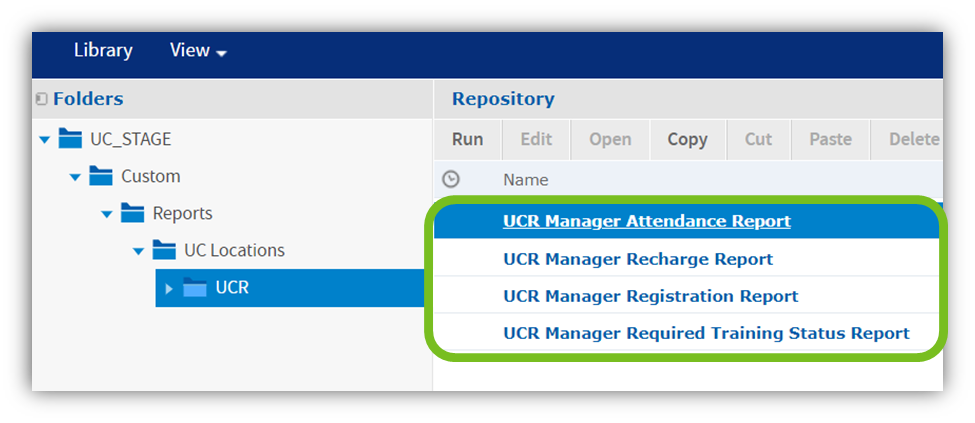
|
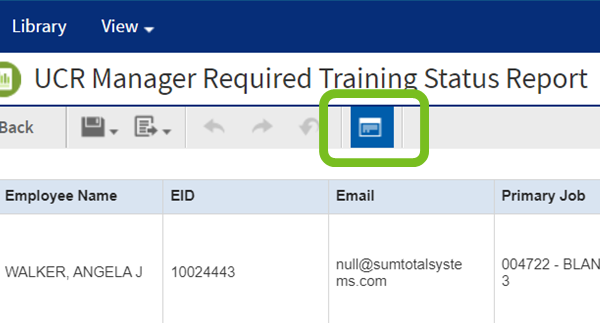
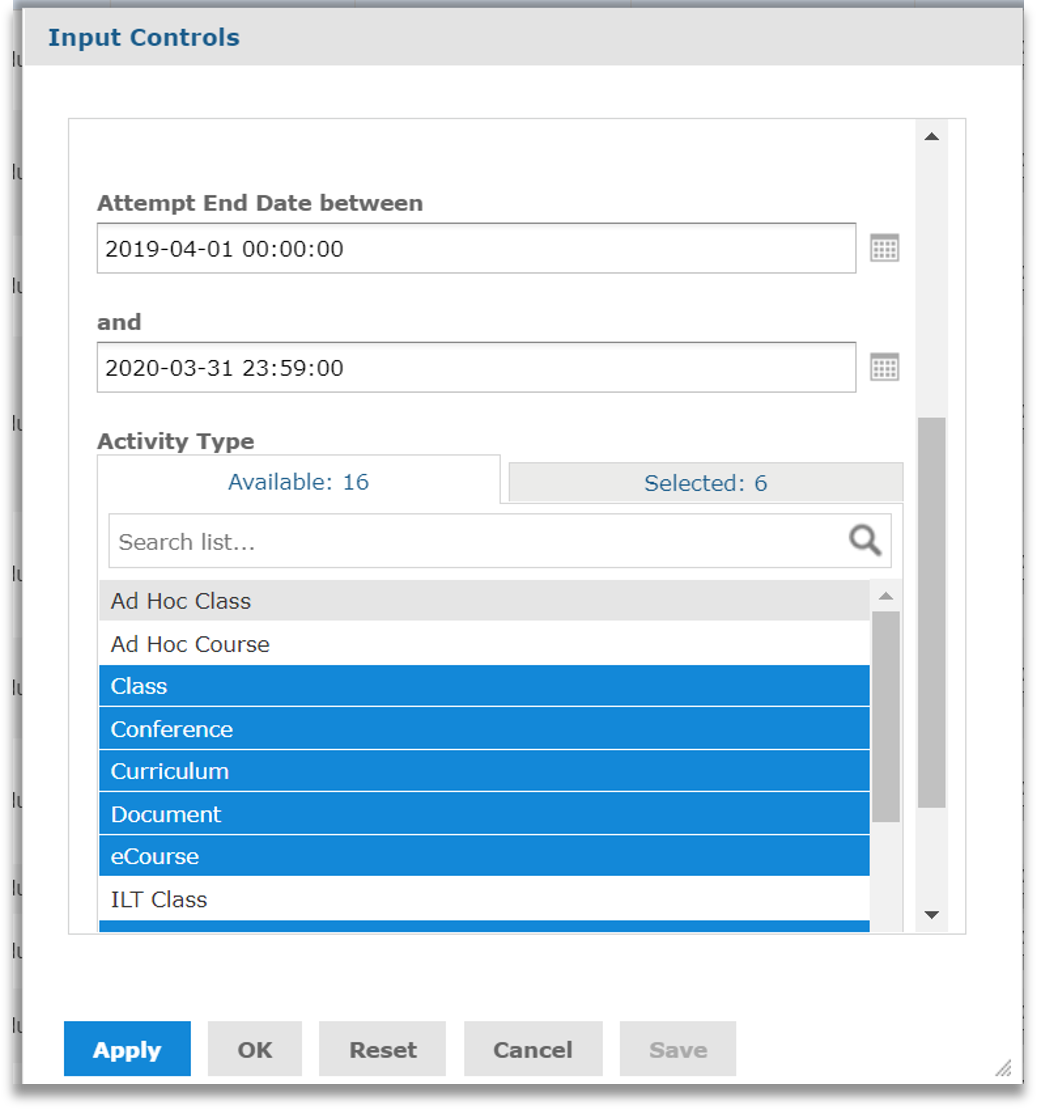
4 | If needed, select the Options icon form the toolbar to adjust report filter settings. When done select OK.
| 
|
5 | If needed, select a column heading to filter, format, or sort data Select a column heading to open the column menu. In addition to being able to format and sort records, the column filter provides the ability to further refine the report as needed. | 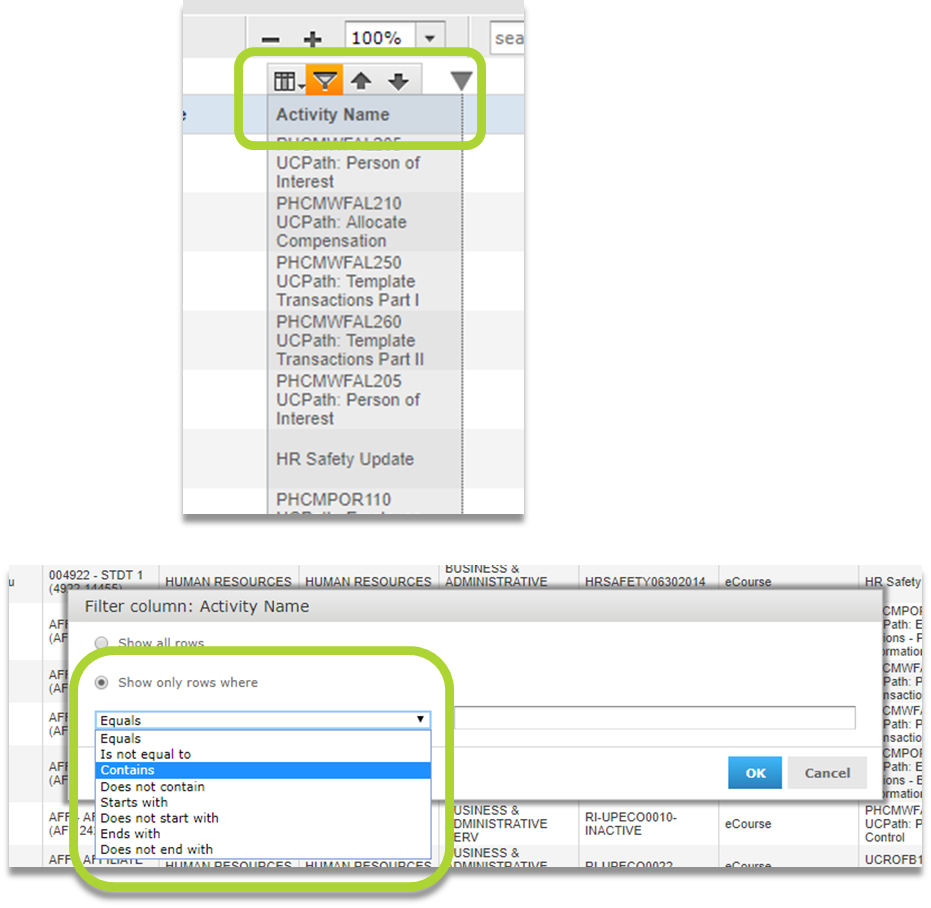
|
6 | To export the report, select the Export icon from the toolbar and choose a file format. Open or save the file as needed. | 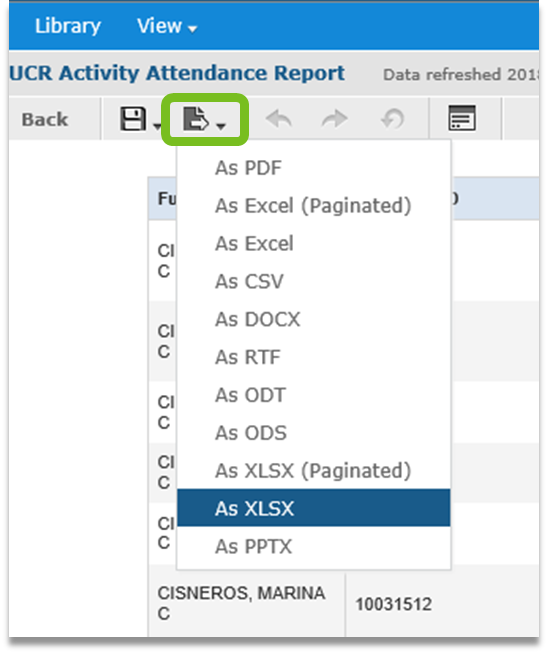
|
The Attendance Report will strictly include records with an Attempt End Date.
- Attendance Status: Use this to filter for Canceled, No Show, or Attended status. Default: Includes all except (no data). ((No data) is typically an indicator of a registration to waiting list or expression of interest list or to a curriculum where the subscribed activities have not been completed.)
- Attempt End Date: Use this to select the start and end dates and times you would like the report to include.
- Activity Type: We recommend leaving this in the default setting. This can be used to filter by activity type. Please note, changing the default settings could result in duplicate records being pulled in (e.g., using both ILT Course and ILT Class will pull in the records from any course rosters as well as a class roster, additionally, some eCourses are offered through topics and some are not). In rare instances, including Topics may be necessary. Default: Includes Class, Conference, Curriculum, Document, ILT Course, Self-Reported Training, and eCourse.
The Recharge Report will strictly include activities with a cost.
- Activity Name Contains: Enter part of an activity name (e.g., Franklin Covey) to limit the report to a specific activity. Default: Blank – which includes all.
- User Primary Organization contains: Use this to limit the report to a subset of departments. Default: Blank – which includes all.
- Registration Status: Use this to filter by current status. Default: Completed, No-Show, On Waiting List, Registered.
- Activity Start Date: Use this to limit to activities with a start date on or after a specific date and time.
- Activity Type: Can be used to filter by activity type, recommend leaving as is, which includes only activity types with a possible costs. Default: ILT Class, Session. Note: Sessions roll-up to an ILT Class and only the first session will typically have a cost.
- Activity Cost is greater than or equal to: Used to filter report to activities with a cost. Recommend leaving as-is. Default: 1.
The Registration Report will strictly include activities WITH A START DATE.
- Activity Name Contains: Enter part of an activity name (e.g., Franklin Covey) to limit the report to a specific activity. Default: Blank – which includes all.
- Registration Status: Use this to filter for current (Registered/On Waiting List) or Cancelled registrations. Default: Registered, On Waiting List.
- Activity Start Date: Use this to limit to activities with a start date on or after a specific date and time. Default: After this Day.
- Activity Type: Can be used to filter by activity type, recommend leaving as is. Default: Class, ILT Class, Self-Reported Training, and Session. Note: Sessions roll-up to an ILT Class and only the first session will typically have a cost.
TIP: If you try to include online activities such as eCourses or Documents, they will not be show up as they do not have a start date.
The Required Training Status Report will strictly include activities assigned in the system.
- Activity Name Starts with: Enter the start of an activity name (e.g., UC Sexual Violence) to limit report to a specific activity. Default: Blank – which includes all.
- Requirement Status: Use this limit the report to Overdue, Expired, Satisfied, or Assigned statuses. Default: None selected – which includes all.
- User Primary Organization contains: Use this to limit the report to a subset of departments. Default: None selected – which includes all.
TIP: Filtering Requirement Status to Overdue/Expired/Assigned is similar to pulling an exception report from the Manager Dashboard.